Connect Claude to URManager
Last updated: June 9, 2026
URManager offers an official Model Context Protocol (MCP) connector that lets Claude work directly with your URManager account — looking up properties and leases, checking balances, capturing leads, logging expenses, recording payments, issuing invoices, managing access codes, and more, all in plain language.
1. Overview
The connector is a remote MCP server hosted at https://mcp.urmanager.com. Once connected, Claude can read your data and take actions on your behalf through a secure, consented connection scoped to your account only. You stay in control: Claude shows you each tool call, and you can disconnect at any time.
2. Requirements
- An active URManager account (host.urmanager.com).
- A Claude plan that supports custom connectors (Claude Pro, Max, Team, or Enterprise).
- The connector URL:
https://mcp.urmanager.com/sse
3. Connect on Claude.ai (web & desktop app)
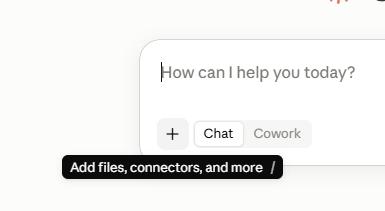
- In the chat composer, click the + icon (“Add files, connectors, and more”).
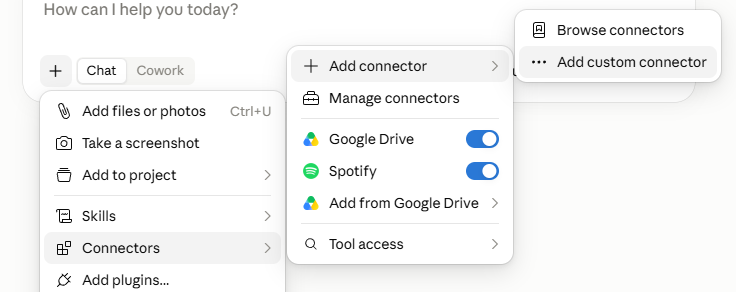
- Choose Connectors → Add connector → Add custom connector.
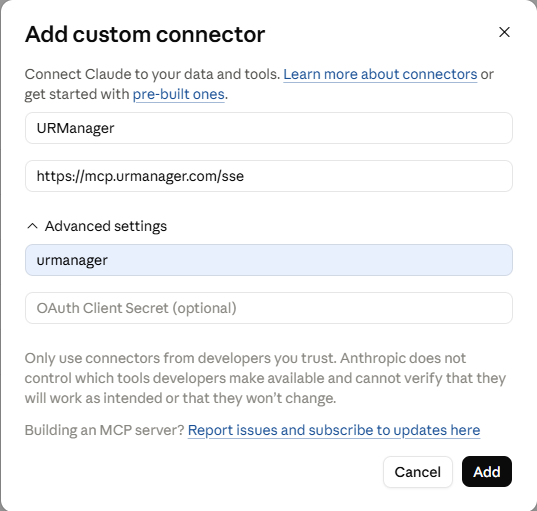
- In the Add custom connector dialog, expand Advanced settings and enter:
- Name: URManager
- Remote MCP server URL:
https://mcp.urmanager.com/sse - OAuth Client ID:
urmanager - OAuth Client Secret: leave blank (the connector uses secure PKCE for public clients)
- Click Add. URManager now appears under Settings → Connectors — open it and click Connect.
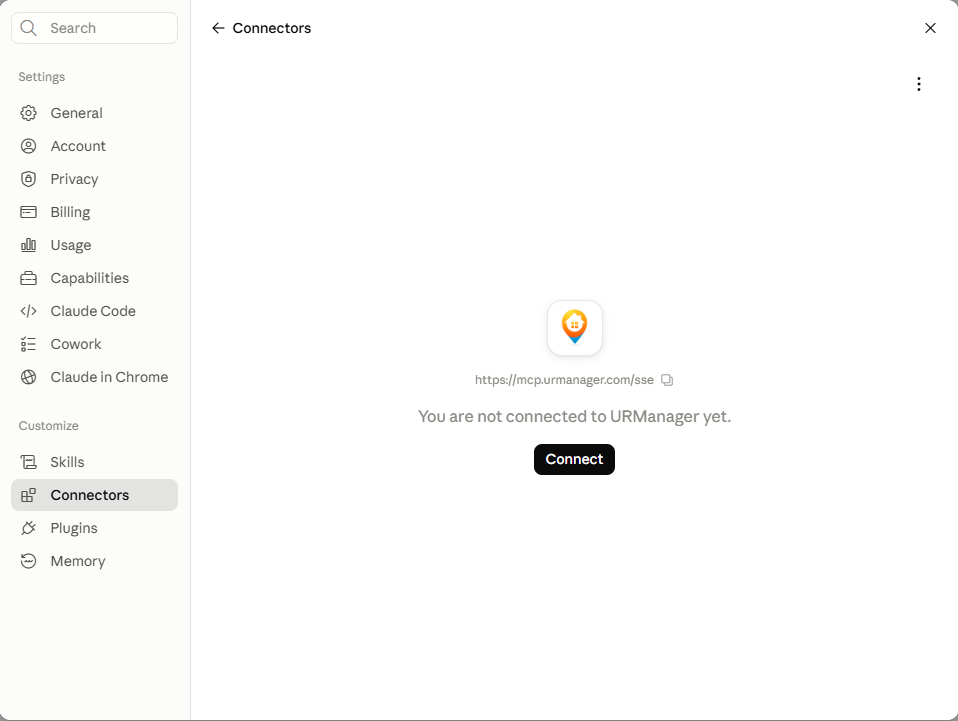
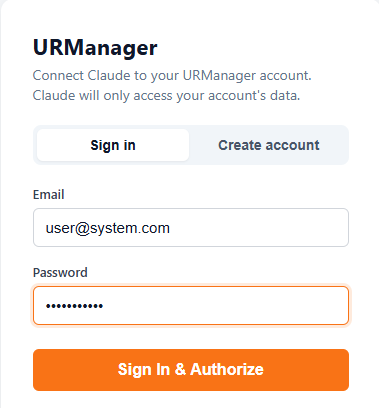
- Sign in with your URManager email and password (or “Sign in with Google”) and approve access.
- Start a new chat. The URManager tools load when the conversation begins.
4. Connect on Claude Desktop (local)
Prefer a local connection? Add URManager to your claude_desktop_config.json:
{
  "mcpServers": {
    "urmanager": {
      "command": "npx",
      "args": ["-y", "@urmanager/mcp"],
      "env": {
        "API_BASE_URL": "https://api.urmanager.com",
        "API_EMAIL": "you@example.com",
        "API_PASSWORD": "your-password"
      }
    }
  }
}
Fully quit and relaunch Claude Desktop — a tools icon in the message bar confirms it loaded.
5. Signing in (authentication)
The web connector uses OAuth 2.0. When you connect, you sign in with your URManager email and password — or with “Sign in with Google” — and approve access. Sessions stay active automatically: access renews in the background, so you don't have to reconnect every week. Disconnecting the connector in Claude revokes its access immediately.
6. What Claude can do
The connector exposes tools across every part of URManager. A few examples:
- Properties & leases: "List my active units." · "What's the balance on the lease at 123 Main?"
- CRM: "Add a lead named Jordan and check for duplicates, then promote it to a contact."
- Accounting: "Log a $20.74 Gexa electricity bill on the Arizona Pl property." · "Record this month's mortgage payment." · "Create and send an invoice for lease X."
- Smart locks: "What's the battery on the front-door lock?" · "List the active access codes."
- Maintenance: "Show open service requests and mark the plumbing one in progress."
Every tool is labelled as read-only or as making changes, so Claude (and you) can tell at a glance which actions modify your data.
7. Attaching receipts
When you log an expense, you can attach the receipt two ways:
- Upload link (recommended): Claude gives you a one-time link. Open it, drop the file, and it uploads straight to private storage and attaches to the transaction — the file never has to pass through the chat.
- Inline: for small images, Claude can attach the file directly in the conversation.
Receipts are stored privately and are only accessible from your account.
8. Security & privacy
- Account-scoped: the connector can only access the account you sign in with — never other customers' data.
- Consented OAuth: you explicitly approve access, and you can revoke it anytime by disconnecting.
- No data sold: your data is used only to fulfil the actions you ask for. See our Privacy Policy.
- Encrypted & private: connections are HTTPS; sensitive credentials and documents are stored securely and served via short-lived signed links.
9. Troubleshooting
- "Token expired" / can't connect: remove the URManager connector and add it again to re-authorize.
- A new tool isn't showing up: Claude caches the tool list per session — remove and re-add the connector, then start a new chat.
- "Sign in with Google" doesn't appear or errors: use email + password, which always works.
- A tool says it needs a field: Claude will ask you for it — provide the value and retry.
10. Support
Need help connecting or using the connector? Email support@urmanager.com and we'll get back to you.